
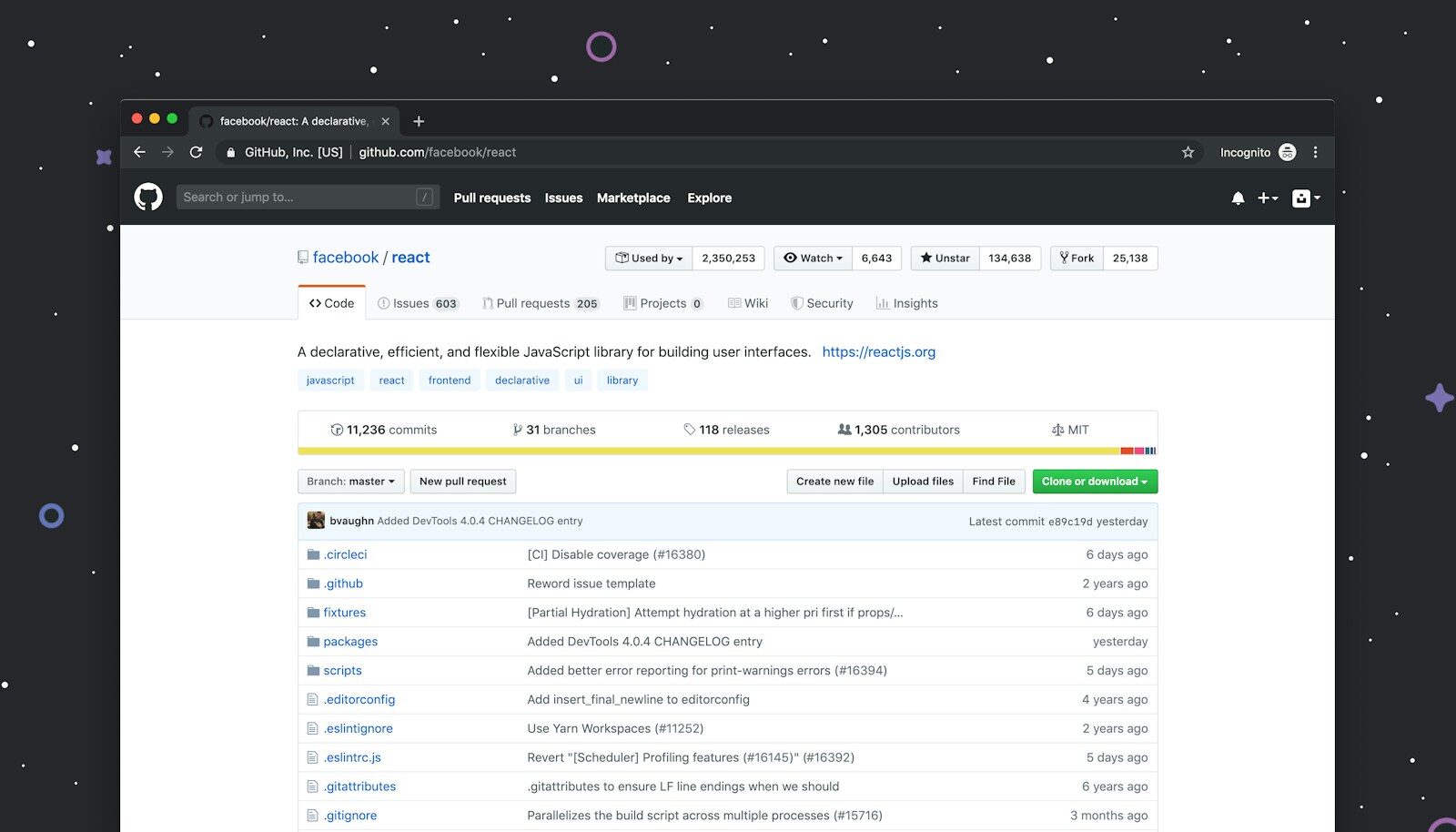
The Snipping Tool is a built-in Windows application that allows users to capture screenshots, record screen activity, extract text from images, annotate screenshots, and share visual information. It is especially useful for students, professionals, designers, developers, teachers, digital marketers, and anyone who regularly needs to save or explain something displayed on a computer screen.
Instead of capturing the entire desktop, users can select a specific area, an application window, or the complete screen. Windows 11 has expanded the tool with additional capabilities, including video recording, text extraction, quick redaction, and selected AI-powered features.
For everyday computer users, Snipping Tool provides a convenient way to capture and communicate information without installing additional screenshot software.
What Is Snipping Tool?
Snipping Tool is a screen capture utility available in Microsoft Windows. It enables users to take screenshots of selected portions of their computer display and perform basic editing tasks.
It supports different screenshot modes, allowing users to capture exactly what they need.
For example:
- Capture a website section.
- Save an important document screenshot.
- Record a software demonstration.
- Capture an error message.
- Highlight important information.
- Extract text from an image.
- Create visual instructions.
- Share screenshots with colleagues.
Microsoft’s official documentation describes Snipping Tool as an application for capturing all or part of the PC screen, editing the capture, saving it, and sharing it. It also documents video capture and text extraction capabilities.
How to Open Snipping Tool in Windows
There are several ways to open Snipping Tool.
Method 1: Use the Keyboard Shortcut
The quickest way to open the screenshot overlay is:
Windows + Shift + S
Press all three keys together.
Your screen will become slightly darker, and the screenshot toolbar will appear. You can then select the area you want to capture.
Method 2: Search From the Start Menu
Follow these steps:
- Click the Windows Start button.
- Type Snipping Tool in the search bar.
- Select the Snipping Tool application.
- Choose your preferred capture mode.
- Click New to begin capturing.
Method 3: Use the Print Screen Key
On supported Windows configurations, pressing the Print Screen key can open the screen capture interface.
You can configure this behavior through Windows keyboard accessibility settings.
Method 4: Pin Snipping Tool to the Taskbar
If you frequently take screenshots:
- Search for Snipping Tool.
- Right-click the application.
- Select Pin to taskbar.
This makes it easier to access the application whenever needed.
Snipping Tool Keyboard Shortcuts
Keyboard shortcuts help users capture screenshots and recordings more quickly.
| Shortcut | Function |
|---|---|
| Windows + Shift + S | Open screenshot overlay |
| Windows + Shift + R | Open video recording overlay |
| Print Screen | Capture or open configured screenshot interface |
| Alt + M | Choose snipping mode |
| Alt + N | Create a new snip in the previous mode |
| Alt + D | Set capture delay |
| Ctrl + C | Copy screenshot |
| Ctrl + S | Save screenshot |
The Windows + Shift + S shortcut is particularly useful for everyday screenshot tasks.
Different Screenshot Modes in Snipping Tool
Snipping Tool provides several capture modes.
Rectangular Snip
Rectangular Snip allows users to capture a rectangular portion of the screen.
You simply click and drag your cursor around the area you want to capture.
Common uses include:
- Capturing website sections.
- Saving charts.
- Capturing product information.
- Sharing selected document content.
- Creating tutorial images.
This is one of the most commonly used screenshot modes.
Freeform Snip
Freeform Snip allows users to draw an irregular shape around the content they want to capture.
Unlike rectangular selection, you can create a custom outline.
It is useful when capturing a particular object or section that does not fit neatly inside a rectangle.
Window Snip
Window Snip captures a selected application window.
For example, you can capture:
- Google Chrome.
- Microsoft Word.
- File Explorer.
- Settings.
- A software dashboard.
- A specific application dialog.
This is particularly useful when you want to capture an application without manually cropping the screenshot.
Full-Screen Snip
Full-Screen Snip captures the entire visible screen.
It can be useful for:
- Software documentation.
- Troubleshooting.
- Presentations.
- Educational tutorials.
- Demonstrating desktop workflows.
For users working with multiple monitors, capture behavior depends on the selected mode and Windows configuration.
How to Take a Screenshot Using Snipping Tool
Taking a screenshot is straightforward.
Follow these steps:
- Open Snipping Tool or press Windows + Shift + S.
- Select Rectangular, Freeform, Window, or Full-Screen mode.
- Select the content you want to capture.
- Open the screenshot in Snipping Tool if required.
- Edit or annotate the image.
- Click Save or copy the screenshot.
When using the shortcut overlay, the capture is copied to the clipboard and a notification provides access to the captured image.
How to Record Your Screen Using Snipping Tool
Windows 11 Snipping Tool also supports screen recording.
This means users can capture video demonstrations without necessarily installing another screen-recording application.
To record your screen:
- Open Snipping Tool.
- Select the Record option.
- Click New.
- Select the rectangular screen area you want to record.
- Configure microphone options where available.
- Click Start.
- Perform the actions you want to record.
- Click Stop when finished.
- Preview and save the recording.
You can also use:
Windows + Shift + R
to open the video capture interface.
Microsoft documents screen recording through Snipping Tool and the option to continue editing recordings in Clipchamp.
What Can You Record?
Screen recording can be useful for:
- Software tutorials.
- Online learning demonstrations.
- Website walkthroughs.
- Troubleshooting instructions.
- Presentation demonstrations.
- Training videos.
- Application testing.
- Step-by-step computer guides.
Can Snipping Tool Record Audio?
Yes, supported versions provide microphone audio options during screen recording.
Audio capabilities and available controls can vary depending on the application version and Windows configuration.
After recording, users can also open the clip in Clipchamp for additional editing.
AI Features in Snipping Tool
Microsoft has expanded Snipping Tool beyond traditional screenshot capture.
Some Windows 11 AI-powered capabilities are available on compatible Copilot+ PCs.
Text Actions
Text Actions uses optical character recognition (OCR) to detect text inside screenshots.
For example, imagine you capture an image containing:
- A phone number.
- An email address.
- A website address.
- A paragraph.
- A product code.
- Information from a scanned document.
Instead of manually typing the information, you can use Text Actions to extract and copy the detected text.
This is particularly helpful for students, researchers, office employees, and digital marketers.
Quick Redact
Quick Redact helps identify and hide certain sensitive information in a screenshot.
Microsoft documents the ability to redact detected email addresses and phone numbers.
This can be useful before sharing screenshots containing personal contact information.
Users should still inspect the final image to make sure all sensitive information has been removed.
Perfect Screenshot
On compatible Copilot+ PCs, Perfect Screenshot can automatically adjust the capture area to tightly frame prominent on-screen content.
This can reduce the need for manual cropping.
Color Picker
The Color Picker feature on supported Copilot+ PCs allows users to capture a color from the screen and copy its color value.
This can be particularly useful for:
- Graphic designers.
- UI designers.
- Web developers.
- Digital marketers.
- Brand designers.
For example, you can identify a color used in a website design and use its value when developing a matching graphic.
Important: AI-powered capabilities such as Perfect Screenshot and Color Picker have specific hardware requirements. They are not available on every Windows computer.
How to Edit Screenshots in Snipping Tool
Snipping Tool includes basic image-editing and annotation capabilities.
After capturing a screenshot, users can make several adjustments.
Pen Tool
The Pen Tool allows users to draw directly on screenshots.
It can be used to:
- Circle important information.
- Draw arrows.
- Mark errors.
- Highlight specific areas.
- Explain a particular section.
Highlighter Tool
The Highlighter Tool helps draw attention to important information.
It is particularly useful for educational screenshots and work documentation.
Shapes
Users can add shapes and visual elements to their screenshots.
For example:
- Rectangles.
- Circles.
- Arrows.
- Other supported shapes.
These help communicate information more clearly.
Crop Tool
The Crop Tool allows users to remove unnecessary portions of a screenshot.
For example, you may capture an entire browser window but only need the central dashboard.
Cropping makes the final image more focused.
Undo and Redo
Undo and Redo allow users to reverse or restore annotation changes.
This makes screenshot editing easier without starting the capture process again.
Where Are Snipping Tool Screenshots Saved?
Snipping Tool can copy screenshots to the clipboard and save captures to your computer.
On supported Windows 11 configurations, automatically saved screenshots are generally stored in:
Pictures > Screenshots
Video recordings are generally stored in:
Videos > Screen Recordings
The exact behavior can depend on the application version and save settings.
To save a screenshot manually:
- Capture your screenshot.
- Open it in Snipping Tool.
- Click the Save icon.
- Select your destination folder.
- Enter the filename.
- Click Save.
You can also change the automatic save behavior through the application’s settings.
Snipping Tool for Students
Students can use Snipping Tool to make studying and online learning more efficient.
Some practical applications include:
- Capturing important textbook content.
- Saving diagrams.
- Taking screenshots of online classes.
- Capturing mathematical problems.
- Extracting text from images.
- Recording software demonstrations.
- Creating study notes.
- Saving educational charts.
For example, a student learning computer programming can capture an error message and add arrows or annotations to explain the problem.
Teachers can also use screen recordings to create short instructional demonstrations.
Snipping Tool for Office Professionals
Office professionals frequently work with documents, presentations, spreadsheets, and online dashboards.
Snipping Tool helps simplify visual communication.
Common applications include:
- Capturing Excel reports.
- Saving presentation slides.
- Sharing software errors.
- Documenting workflows.
- Capturing email information.
- Explaining website issues.
- Creating internal training materials.
Instead of explaining a complex problem through a long message, an employee can share a screenshot with the relevant area highlighted.
Snipping Tool for Digital Marketers
Digital marketers can use Snipping Tool for several everyday activities.
SEO Audits
Capture screenshots of:
- Google Search Console.
- Google Analytics.
- SEO audit reports.
- Website errors.
- Search results.
- Competitor website sections.
Social Media Marketing
Capture examples of:
- Social media advertisements.
- Instagram layouts.
- Facebook campaign settings.
- Creative references.
- Competitor content.
Website Design
Use screenshots to document:
- Website layouts.
- Navigation problems.
- Landing page sections.
- Mobile responsiveness.
- UI design references.
Client Reporting
Capture important dashboard sections and highlight performance metrics.
Training and Tutorials
Record short demonstrations showing how to use marketing tools and software.
For agencies and marketing teams, these capabilities can simplify communication between designers, SEO executives, developers, and clients.
Snipping Tool vs. Print Screen
Both Snipping Tool and Print Screen can capture computer screens, but their workflows are different.
| Feature | Snipping Tool | Print Screen |
|---|---|---|
| Selected-area capture | Yes | Depends on configured behavior |
| Freeform capture | Yes | No built-in freeform selection |
| Window capture | Yes | Not its primary function |
| Full-screen capture | Yes | Yes |
| Screenshot annotation | Yes | Requires another editing step |
| Text extraction | Supported versions | Requires another tool |
| Screen recording | Supported Windows 11 versions | No |
| Custom capture delay | Yes | Not a standard Print Screen feature |
Snipping Tool provides more control over how screenshots are captured and edited.
Snipping Tool Alternatives
Although Snipping Tool covers many everyday requirements, some users need more advanced screenshot and recording capabilities.
Several alternatives are available.
ShareX
ShareX is a free, open-source Windows application for screen capture, screen recording, GIF creation, file sharing, and workflow automation.
It offers features such as:
- Custom screenshot workflows.
- Advanced capture options.
- Scrolling capture.
- Image editing.
- Screen recording.
- Custom upload destinations.
- Automated tasks.
ShareX is especially useful for technical users and professionals who need more control over screenshots and sharing workflows.
Official website: https://getsharex.com/
Greenshot
Greenshot is a screenshot utility designed to simplify image capture and annotation.
It can be useful for:
- Capturing selected regions.
- Capturing windows.
- Annotating screenshots.
- Highlighting information.
- Exporting images.
It is commonly used for documentation and office workflows.
Official website: https://getgreenshot.org/
Lightshot
Lightshot is a lightweight screenshot utility that allows users to capture selected screen areas and make quick edits.
Common capabilities include:
- Region selection.
- Basic annotations.
- Copying screenshots.
- Saving images.
- Sharing captured images.
Its suitability depends on the user’s operating system and current application support.
Official website: https://app.prntscr.com/
OBS Studio
OBS Studio is primarily a screen-recording and live-streaming application rather than a simple screenshot utility.
It is useful for:
- Recording tutorials.
- Creating educational videos.
- Recording presentations.
- Streaming.
- Capturing multiple video and audio sources.
Official website: https://obsproject.com/
Snipping Tool vs. ShareX vs. Greenshot vs. OBS Studio
| Tool | Primary purpose | Main capabilities |
|---|---|---|
| Snipping Tool | Everyday screenshots | Screenshot capture, annotations, recording |
| ShareX | Advanced screen capture | Custom workflows, capture, sharing, recording |
| Greenshot | Screenshot documentation | Capture, annotations, export |
| Lightshot | Quick screenshots | Region capture and basic editing |
| OBS Studio | Video recording and streaming | Advanced video and audio capture |
The right application depends on whether you need simple screenshots, advanced capture workflows, or professional screen recording.
Common Snipping Tool Problems and Solutions
Sometimes Snipping Tool may not work as expected.
Here are some common problems and possible solutions.
Snipping Tool Shortcut Not Working
If Windows + Shift + S does not open the capture interface:
- Check whether another application is overriding the shortcut.
- Open Windows Settings.
- Go to Accessibility > Keyboard.
- Check the Print Screen-related settings.
- Restart Snipping Tool.
- Install available Windows and application updates.
Snipping Tool Is Not Opening
Try the following:
- Open Start.
- Search for Snipping Tool.
- Open the application.
- If it fails, open Settings.
- Navigate to Apps > Installed Apps.
- Find Snipping Tool.
- Open Advanced Options.
- Try Repair.
- If necessary, try Reset.
Screen Recording Option Is Missing
If you cannot see the Record option:
- Check your Snipping Tool version.
- Install available Microsoft Store updates.
- Restart the application.
- Restart your computer.
- If necessary, reinstall Snipping Tool through Microsoft Store.
Feature availability can depend on the Windows version and installed application build.
Screenshot Is Not Saving
If your screenshots are not being saved:
- Check Snipping Tool settings.
- Review the automatic save option.
- Confirm the Screenshots folder exists.
- Check available storage.
- Try using Save As manually.
Snipping Tool Is Not Extracting Text
If Text Actions is unavailable:
- Update Snipping Tool.
- Confirm that the captured image contains readable text.
- Check whether the feature is supported by your installed version.
- Try capturing a clearer image.
Tips for Using Snipping Tool More Efficiently
You can improve your screenshot workflow with a few simple habits.
Use Keyboard Shortcuts
Windows + Shift + S is usually faster than opening the application manually.
Organize Screenshots
Create separate folders for:
- Work.
- Projects.
- Education.
- Client reports.
- Design references.
- Tutorials.
Use Annotations
Highlighting important details makes screenshots easier to understand.
Remove Sensitive Information
Before sharing a screenshot, check for visible email addresses, phone numbers, customer information, and confidential business data.
Use Screen Recording for Demonstrations
If you need to explain multiple steps, a short recording may be more useful than several screenshots.
Keep the Application Updated
New features and improvements may be distributed through Microsoft Store updates.
Frequently Asked Questions About Snipping Tool
What is the shortcut key for Snipping Tool?
Press Windows + Shift + S to open the screenshot capture overlay in Windows.
Is Snipping Tool free?
Yes. Snipping Tool is included with supported Windows installations at no additional application cost.
Can Snipping Tool record videos?
Yes. Supported Windows 11 versions provide a Record option for capturing selected areas of the screen.
Can Snipping Tool record audio?
Supported versions provide microphone audio controls during screen recording. Available options can vary by application version.
Can Snipping Tool extract text from images?
Yes. The Text Actions feature uses OCR to identify text inside captured images and allows users to copy it.
Does Snipping Tool have AI features?
Yes. Some capabilities are AI-powered. Perfect Screenshot and Color Picker are available on compatible Copilot+ PCs, while other capabilities have their own version and availability requirements.
Where are Snipping Tool screenshots stored?
On supported Windows 11 configurations, automatically saved screenshots are generally stored in Pictures > Screenshots.
Can I capture a scrolling webpage using Snipping Tool?
Snipping Tool does not provide a general native scrolling-page capture workflow. Users who need full-page scrolling screenshots can consider specialist tools such as ShareX or browser-specific capture options.
What is the difference between Snipping Tool and Snip & Sketch?
In Windows 11, Snipping Tool combines the screenshot functionality previously associated with the older Snipping Tool and Snip & Sketch experiences.
Can I use Snipping Tool on Windows 10?
Yes. Microsoft documents Snipping Tool for Windows 10 as well as Windows 11, although newer features and capabilities vary by operating system version.
Is ShareX better than Snipping Tool?
They serve different requirements. Snipping Tool provides convenient built-in screenshot and recording features, while ShareX offers more advanced capture workflows, automation, and sharing options.
Conclusion
Snipping Tool is one of the most useful built-in Windows applications for capturing and communicating visual information.
What started as a basic screenshot utility has developed into a more capable application with screenshot modes, annotation tools, screen recording, text extraction, and selected AI-powered capabilities.
For students, it helps create study notes and educational demonstrations. For office professionals, it simplifies documentation and communication. For designers and digital marketers, it provides a convenient way to capture website references, campaign dashboards, and creative examples.
Users who need advanced automation and sharing features can explore alternatives such as ShareX, Greenshot, and OBS Studio.
Whether you are taking a quick screenshot, extracting text from an image, or recording a software tutorial, Snipping Tool provides a practical starting point for everyday screen capture tasks.